
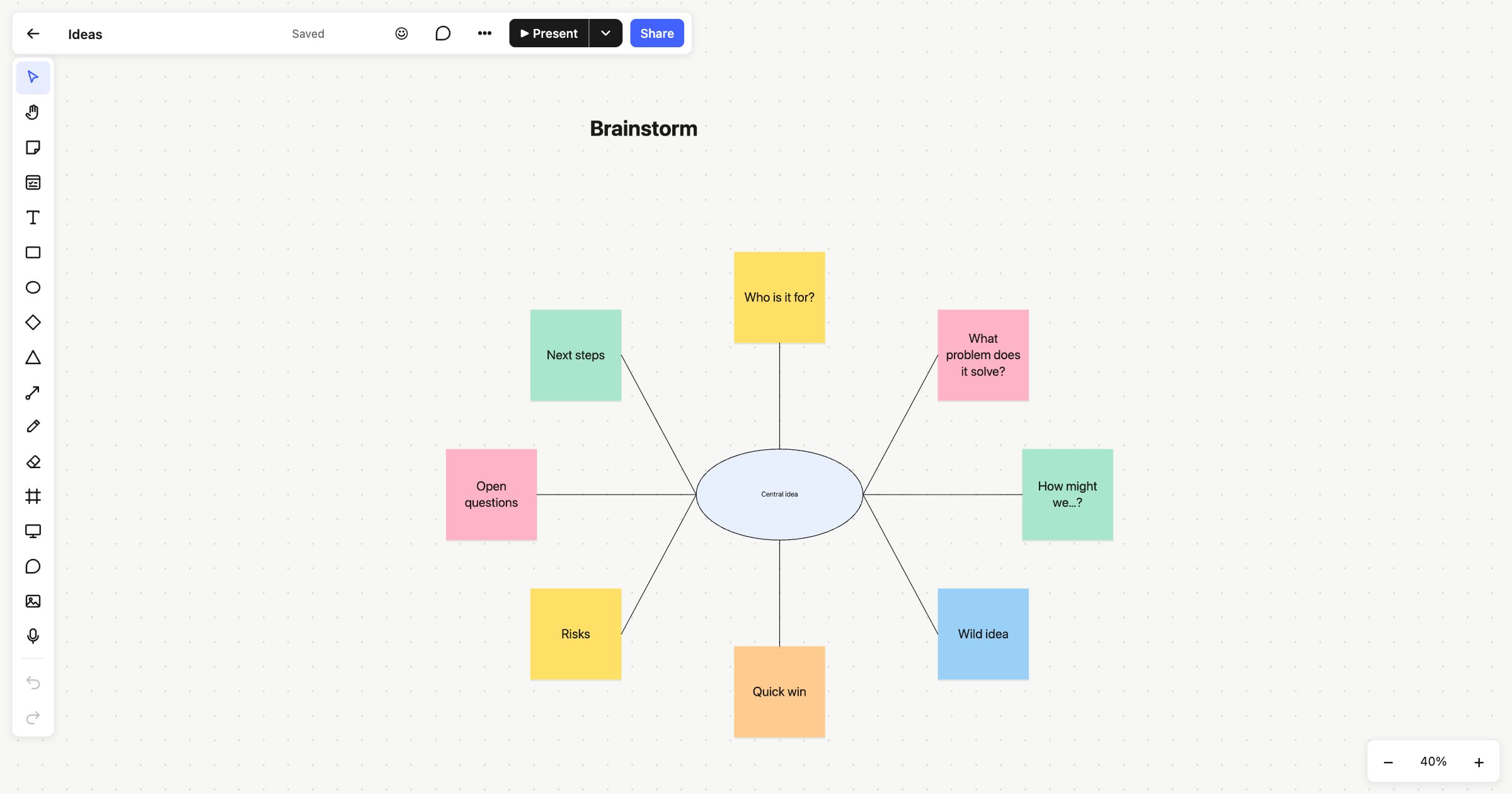
Online sticky notes are the quickest way to get ideas out of people’s heads and onto a board. In Atomic Lab, press N, click, and start typing. There’s no dialog box and no account needed to begin. The note is the text field, and a board can hold thousands of them without slowing down.
Online sticky notes that keep up
Speed matters most in the first ten minutes of a session, when ideas arrive faster than anyone can tidy them. So a sticky note takes one click:
- Press N, or choose the sticky note in the toolbar, and click where you want it. You’re typing straight away.
- The text fits itself. Write more and it gets smaller to stay on the note, without breaking words in half.
- Format a little. ⌘B and ⌘I for bold and italic, ⌘K for a link, and ⇧⌘8 for a bullet list.
- Pick a colour. Six colours sit above a selected note, and your next note uses the one you picked last.
- Edit later. Select a note and press Enter, or double-click it. Esc finishes.
Moving a lot of notes at once
Ideas need grouping, and grouping means moving notes in bulk. Drag across an empty part of the board to select a batch, then drag them together. Hold Alt (⌥) as you drag to leave a copy behind, or press ⌘D to duplicate. The arrow keys nudge, and Shift makes each nudge ten times bigger.
Notes snap into line with their neighbours as you move them. For a tidier result, the align and distribute buttons above a selection line notes up by their edges or centres and space them evenly.
When a cluster has a name, put a frame around it with F. A frame moves with everything in it, and ⌘G groups notes that should always travel together.
Atomic Lab is built to stay smooth with 10,000 objects on a board. Zoomed right out, notes are drawn more simply so the overview stays quick. There’s more on how in Speed is a feature.
From notes to decisions
A wall of sticky notes is only useful if it leads somewhere.
- Vote. An editor starts a vote and chooses how many votes each person gets. Everyone clicks the notes they back. Votes stay hidden until the vote ends, and Add results to the board writes the counts down beside the notes.
- Comment. Press ⇧C and click a note to pin a thread to it. The comment moves with the note. See Comments on the board.
- Join them up. Draw connectors between notes to show what leads to what.
- Turn ideas into work. When a note becomes a task, put a card beside it with a checklist, people and a due date, and drop it into a Kanban column.
- Find anything. ⌘F searches the text of every note on the board, and ⌘K searches all your boards.
Starting a sticky note board
The fastest start is a template. The brainstorming template puts eight prompt notes around a central idea. The affinity diagram gives you loose notes to sort into groups, and the sprint retrospective has columns for what went well, what to improve and the actions.
Each one opens in one click, without signing up. The board is kept in your browser until you sign up free, when it moves into your account. To fill a board together, see real-time collaboration. When you’re done, export it as PNG, SVG or PDF.
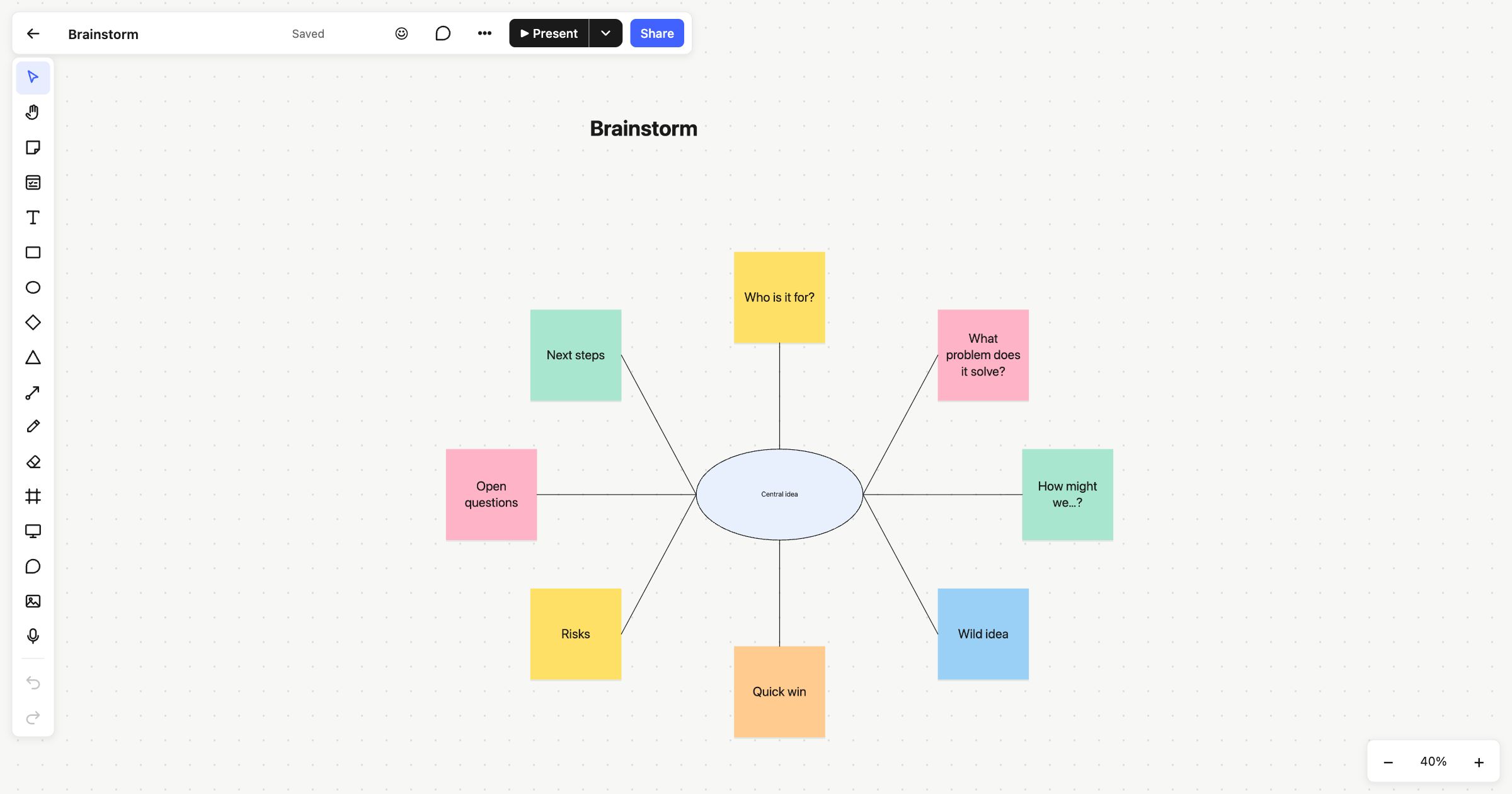 Brainstorming
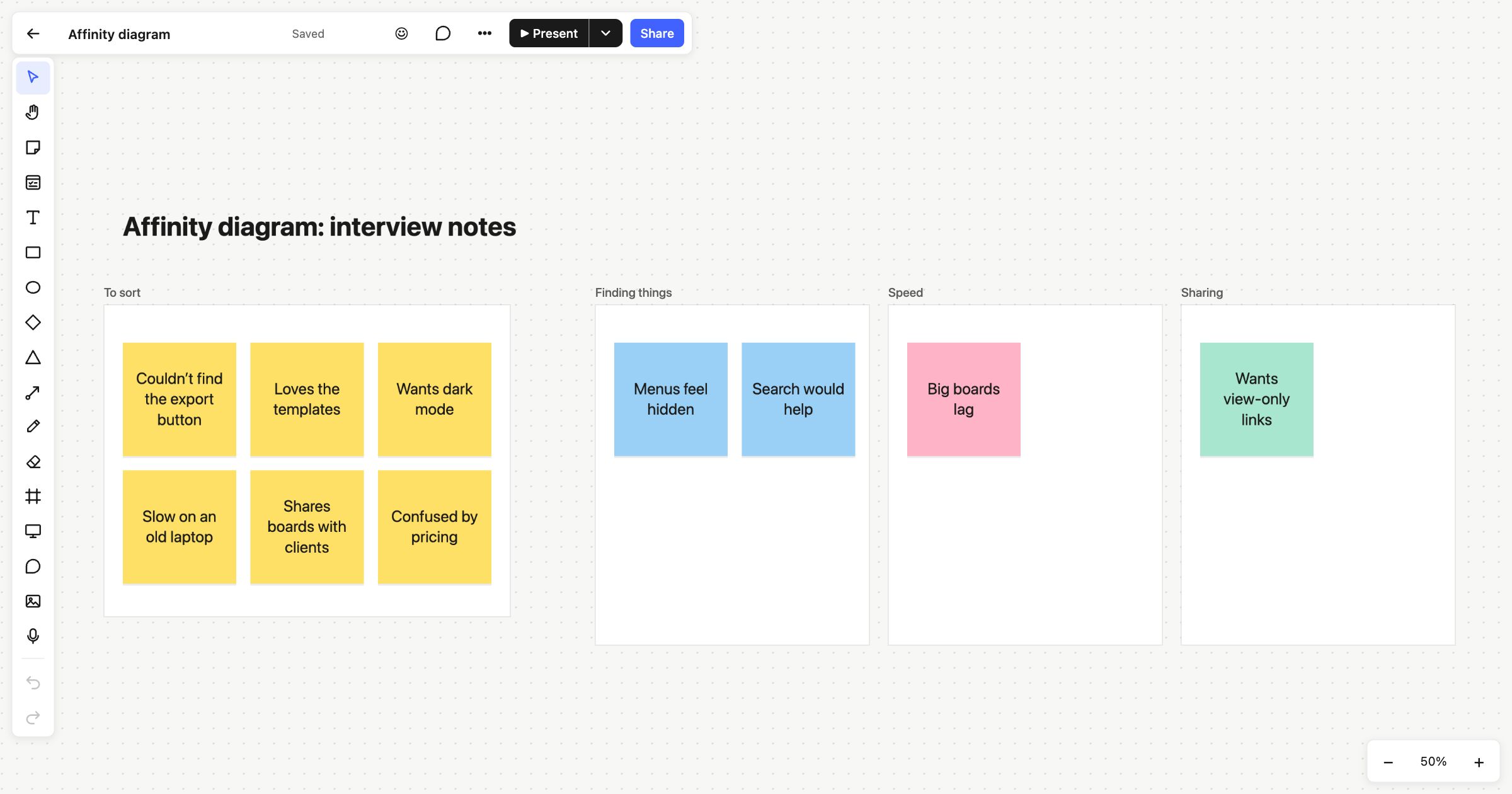 Affinity diagram
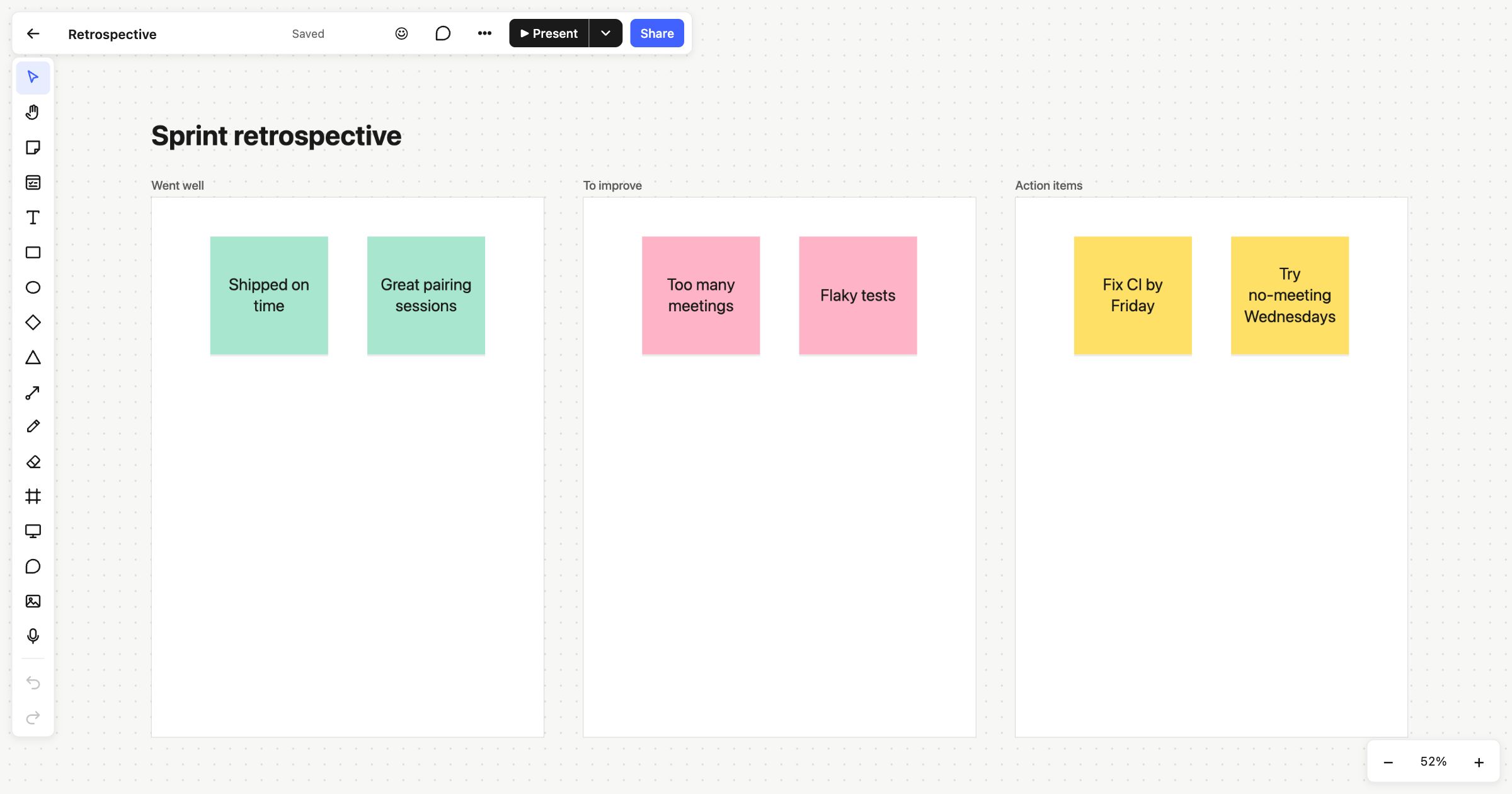 Sprint retrospective