
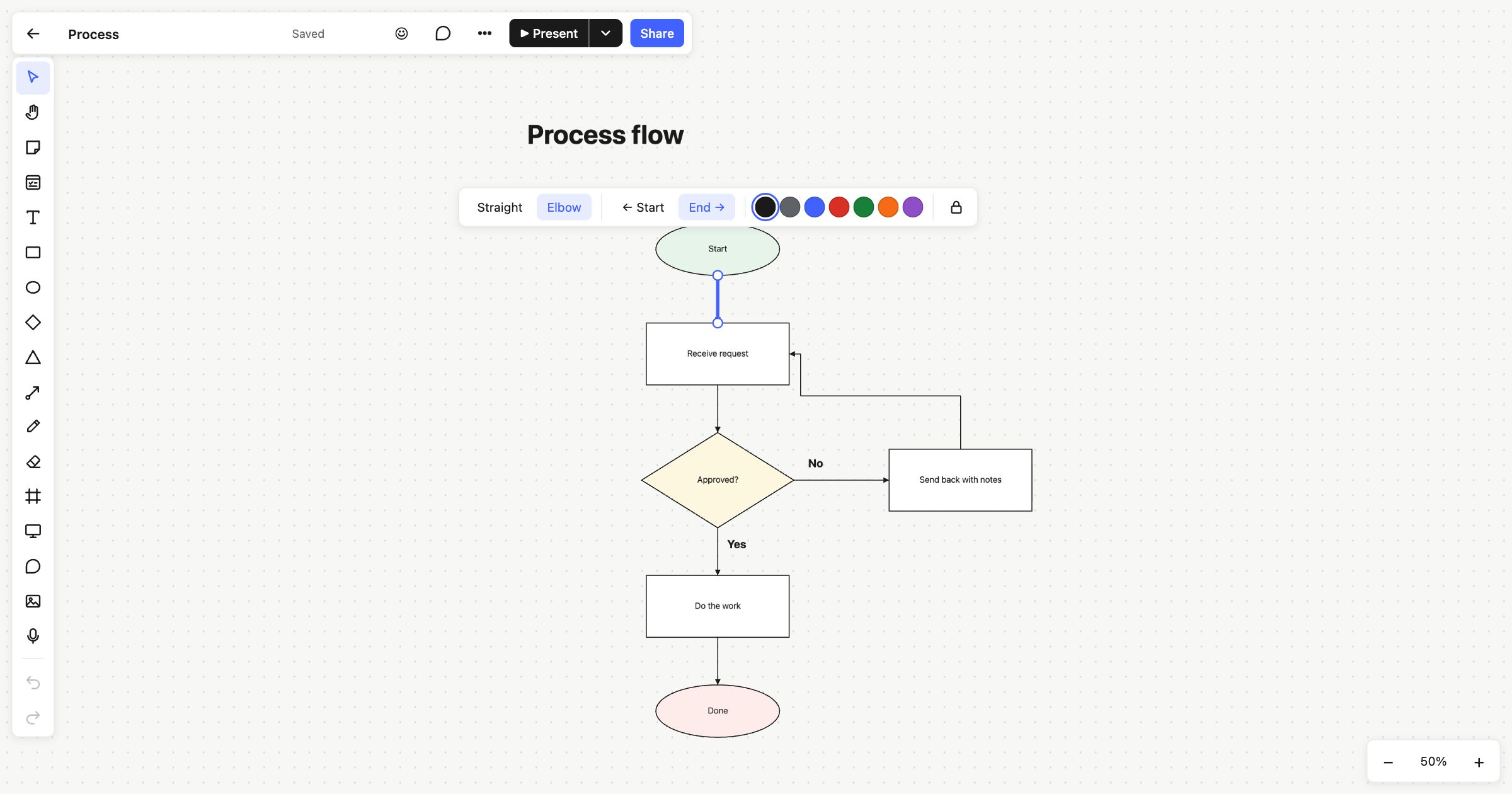
If you need an online flowchart maker that doesn’t take an afternoon to learn, Atomic Lab’s connectors are a good place to start. Draw a few shapes, drag a line between them, and the line stays attached as you rearrange things. It all happens on the same board as your sticky notes, so a flow can sit right next to the discussion that produced it.
Drawing a connector
Press L, or choose the connector in the toolbar, and drag from one object to another. As you get close, dots appear at the middle of each side of the object under the pointer. Let go, and the end attaches to the nearest one: top, right, bottom or left.
A connector can attach to anything on the board except another connector: shapes, sticky notes, text, cards, images and frames. An end you drop on empty board stays where you left it, which is handy for a line that doesn’t point at anything yet.
Select a connector and a handle appears at each end. Drag one onto a different object to reattach it.
Lines that follow your shapes
A connector remembers what it’s attached to, not a fixed path. Move a shape and every line into it moves too, on your screen and on everyone else’s. Rearranging a flowchart never leaves lines pointing at empty space.
There are two kinds of line, on the toolbar above a selected connector:
- Elbow, the default, leaves each shape at a right angle and turns corners. It suits flowcharts, org charts and sitemaps.
- Straight runs directly from end to end. It suits mind maps and quick sketches.
The kind you chose last is used for your next connector. Arrowheads go at the start, the end, both or neither, and there are seven line colours.
An online flowchart maker with the basics done well
Flowcharts need a small set of shapes, and Atomic Lab keeps to them: rectangle (R), ellipse (O), diamond and triangle. Type straight onto a shape, and pick its fill and border from the toolbar. Hold Shift while you resize to keep its proportions.
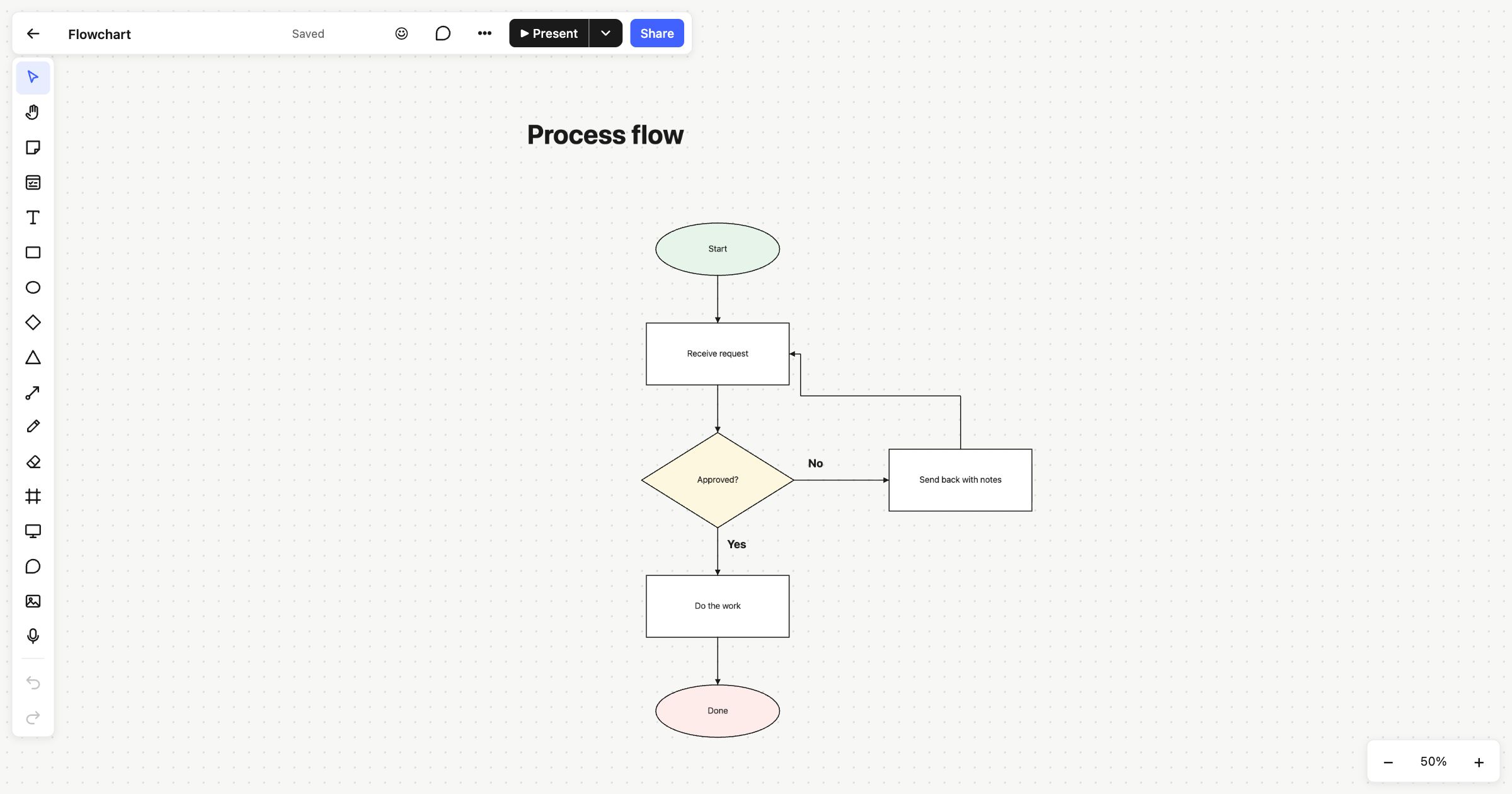
Connectors don’t carry labels of their own. For a “Yes” or “No” on a decision, add a text object (T) beside the line, as the flowchart template does.
To keep the steps in line, select them and use the align buttons, or space them evenly with distribute. When the diagram is ready, export it as PNG, SVG or PDF. Publishing a board gives a live, read-only link that anyone can open without an account.
Diagrams to start from
- Flowchart: a start, a request, an “Approved?” decision with a loop back, and an end, all joined by elbow connectors.
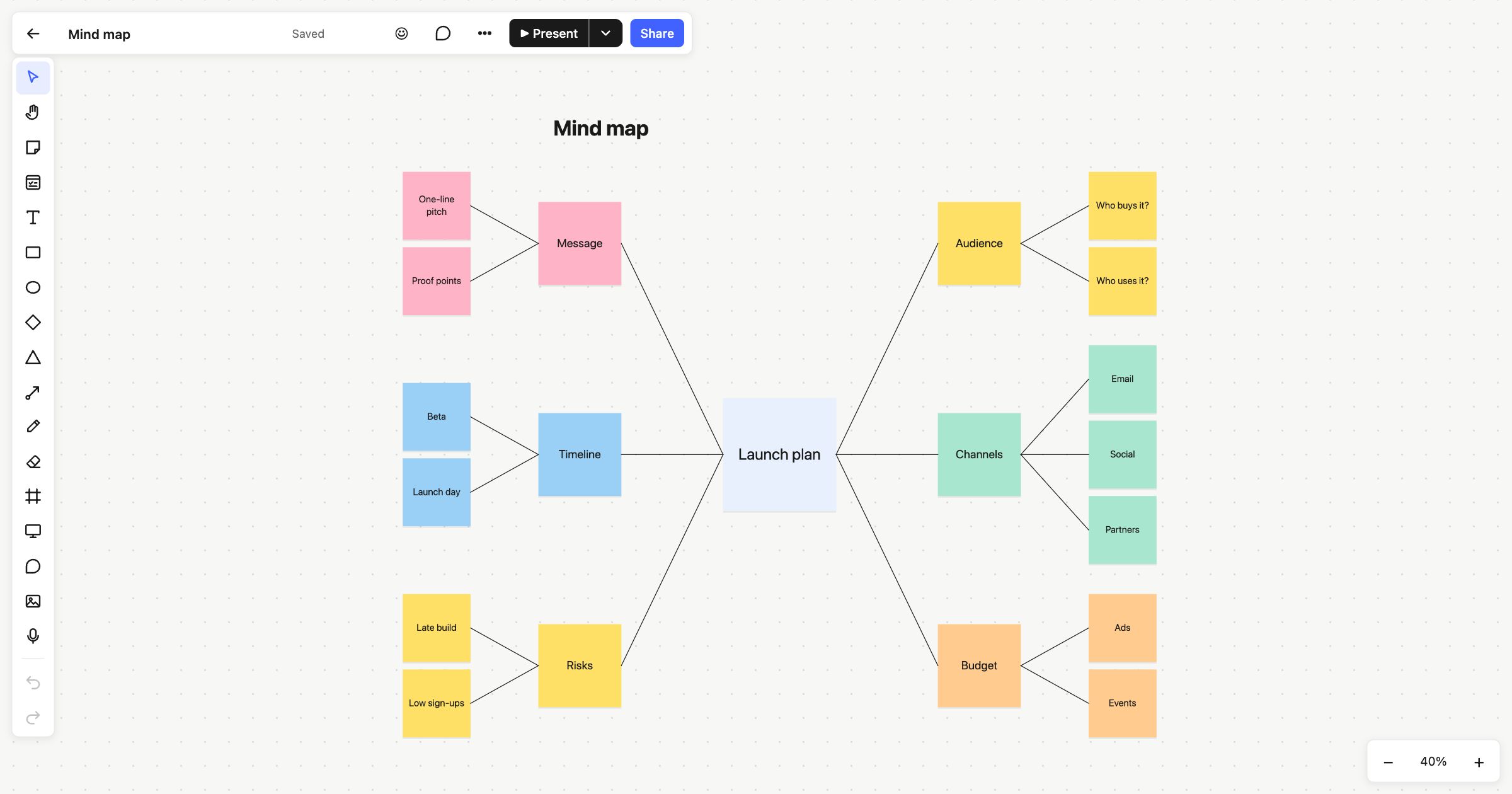
- Mind map: a central topic with branches joined by straight lines.
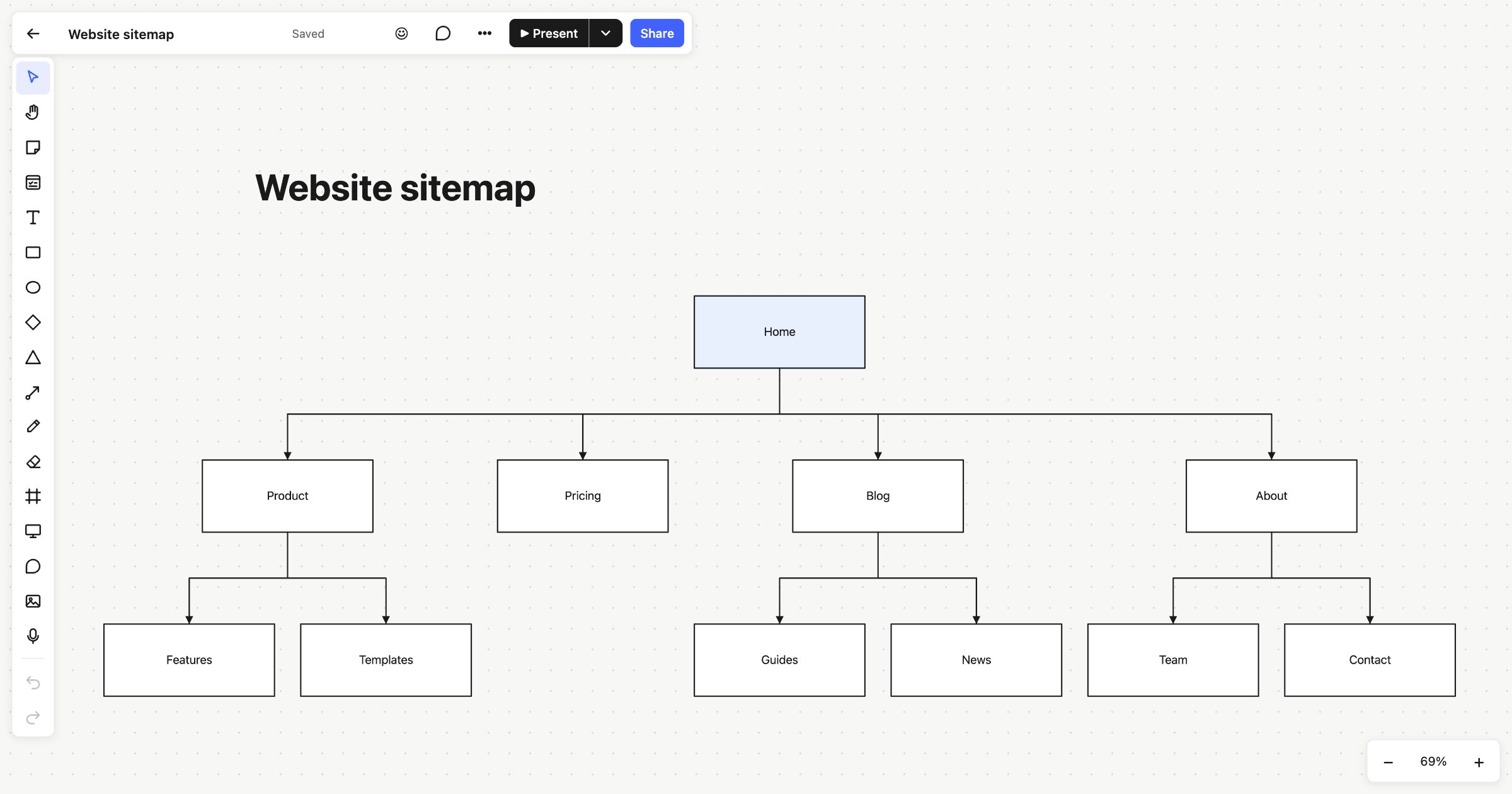
- Website sitemap: a site’s pages as a tree, from Home down.
Each opens in one click, with no account needed. Connectors work alongside sticky notes and Kanban cards, so you can link a card to the step of the process it changes. And with real-time collaboration, everyone sees the diagram change as you draw it.
 Flowchart
 Mind map
 Website sitemap