
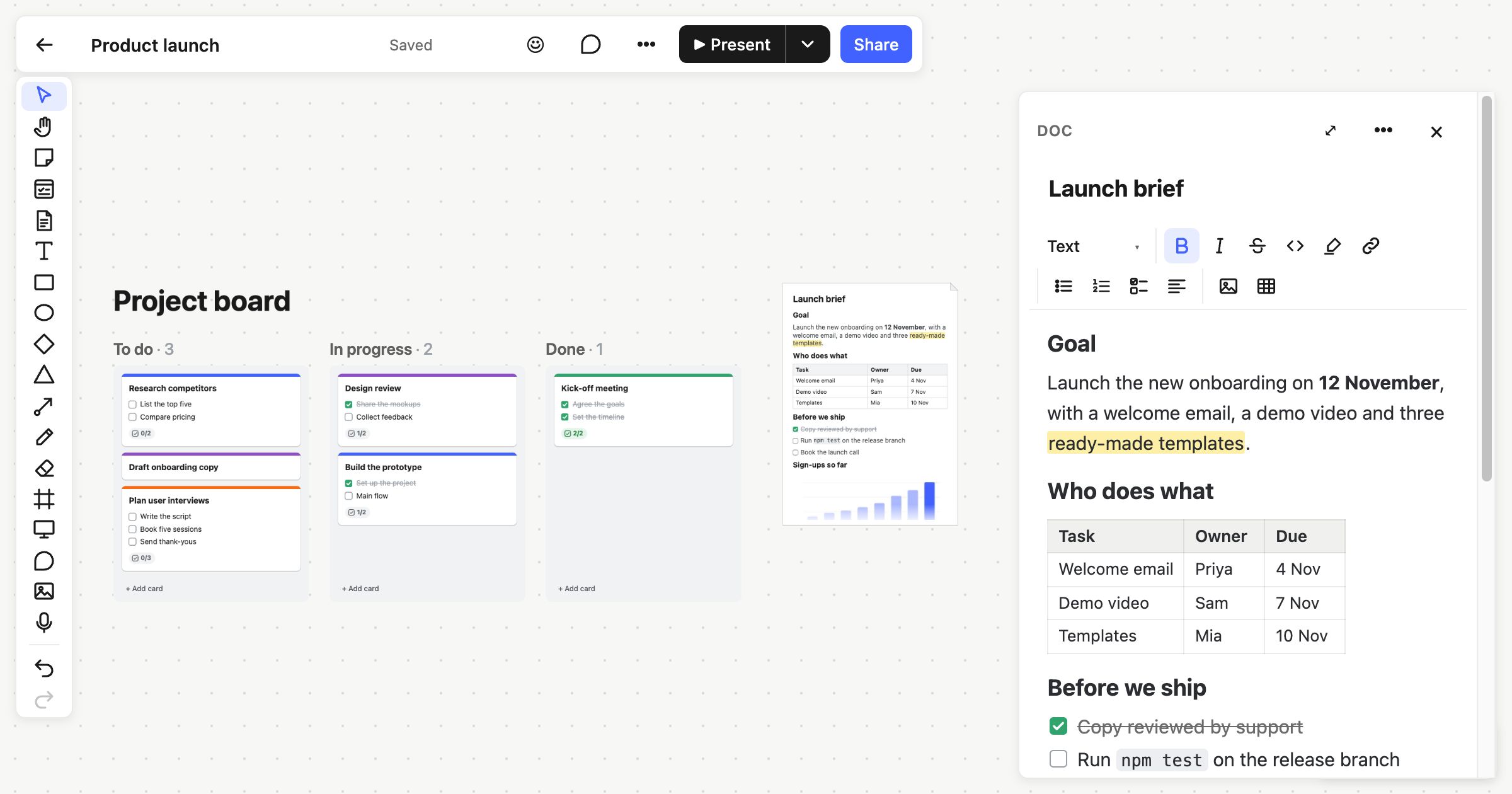
Most teams keep two tools: a whiteboard for working things out, and a document editor for writing them up. The brief ends up in one place and the board that explains it in another. In Atomic Lab, a doc is a page on the board itself, sitting next to the Kanban board it plans, the sticky notes it came from and the diagram it explains.
A page that lives on the board
Press D and click to put a doc on the board. On the board it's a page showing its title and as much of the doc as fits, with its tables, images and to-dos drawn in. Resize it to show more. Double-click it, or select it and press Enter, to open it in a sidebar beside the board, and press Expand (⌘⇧E) for a wide column to write in.
Viewers read docs the same way. A board published to the web shows its docs to anyone with the link, read-only.
Everything a working doc needs
- Headings, lists and to-dos. Type / for a menu of block types, or use Markdown as you go: #, -, 1., [] and >. Tab and Shift+Tab move lines in and out.
- Text styles. Bold, italic, strikethrough, inline code, highlight and links, from the toolbar or the keyboard.
- Alignment. Left, centre, right or justified, for paragraphs, headings and quotes.
- Tables. A grid you type into, with Tab between cells, rows and columns added from the toolbar, and columns aligned.
- Images. Paste or drop them in, drag their sides to resize them, and add a caption.
- Code and quotes, with dividers and page breaks between sections.
Paste from anywhere
Copy a reply from Claude, a web page or a Google Doc and paste it in: the headings, lists, tables, quotes and code keep their shape, and so do bold, italic and links. Cells from a spreadsheet become a table. Markdown becomes formatted text.
Written together
Several people can write in one doc at the same time. Each paragraph is saved separately, a moment after someone stops typing, so two people writing in different paragraphs both keep their work. Changes from others appear as they happen, the same way the rest of the board does with real-time collaboration.
Pin comments to a doc, react to it, and find it with the board's search. Undo works on a doc's changes, and version history covers the whole board, docs included.
Next to the work
A doc on the board can sit beside a Kanban board: the plan's written up in the doc, and the work moves across the columns. A connector can link the doc to the cards or sticky notes it describes.
Take it anywhere
- Markdown. Copy or download a doc as Markdown for a README, a wiki or an email.
- Print or PDF. Print a doc on its own or save it as a PDF, with page breaks where you put them (⌘Enter). The date, address and page numbers browsers usually add are left out.
- Board exports. PNG, SVG and PDF exports of the board show each doc as a page.
Docs are on every plan, including Free. Read more in Docs on the board.