
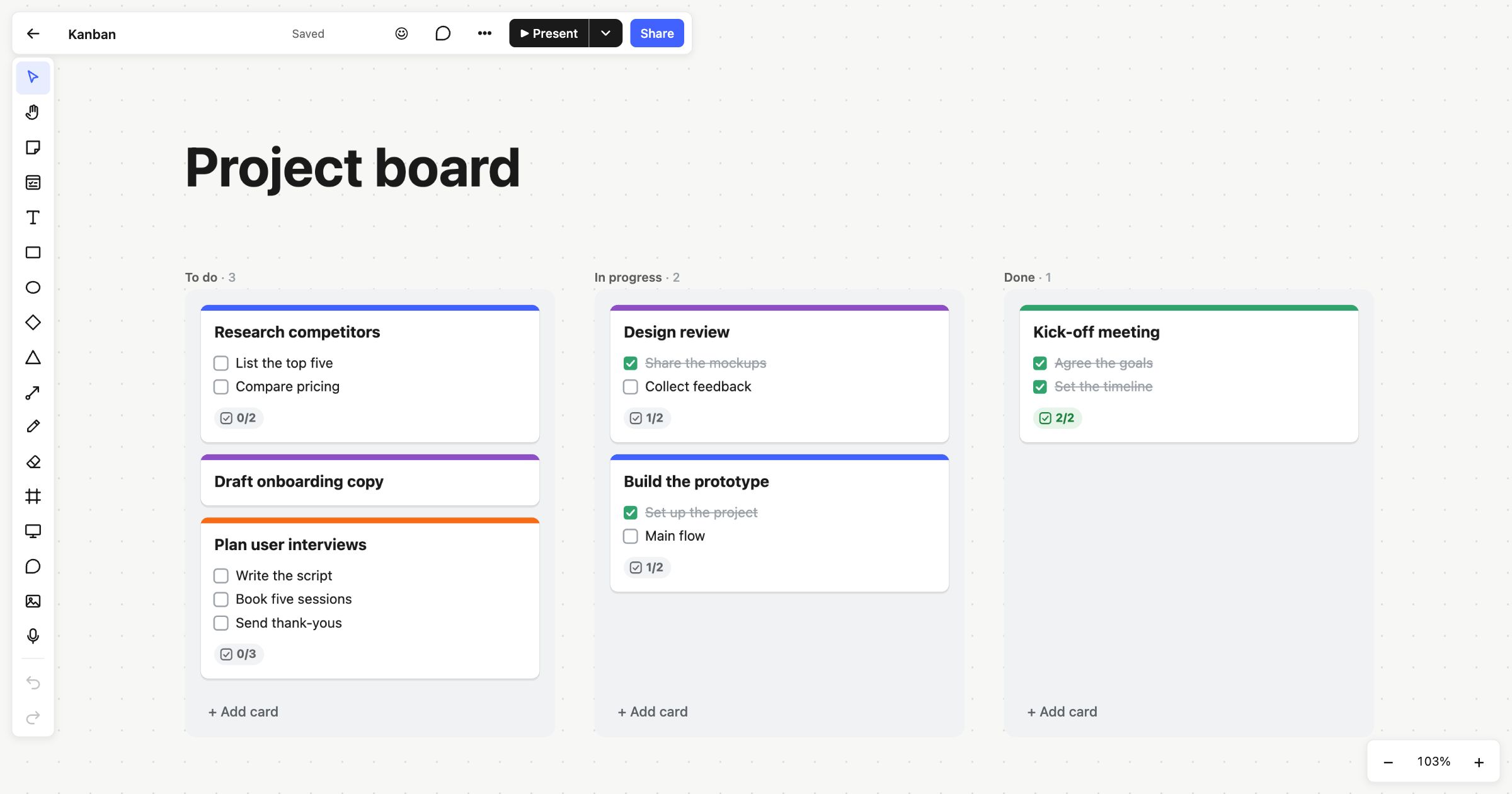
A Kanban board shows work as cards moving through columns, from “To do” to “Done”. It’s the simplest way to see what’s waiting, what’s under way and what’s finished, whether you’re running a project on your own or with a small team. This Kanban board template gives you three columns of real cards, so you can start moving work straight away.
When to use a Kanban board template
Use it when work arrives as a steady stream rather than in one big plan: a small project, a content calendar, a hiring pipeline, or the jobs left before a launch. It also suits work that starts as rough ideas. Because the board is a whiteboard, the sticky notes from a planning session can sit right beside the cards they turn into.
How to run it
- Rename the columns to match how your work really flows. Double-click a column’s title to change it, and right-click a column and choose Add column to the right for another stage, such as “Review”.
- Add the work. Use + Add card at the foot of a column. Give each card a title, and a checklist if it has steps.
- Assign and date it. Add people and a due date to a card, so everyone can see who’s on it and when it’s due.
- Move cards as things change. Drag a card into the next column, or select it and press Alt+← or Alt+→. A card’s column is its status, so there’s no separate field to update.
- Review it weekly. Spend ten minutes looking at what’s stuck in “In progress”, and archive the cards in “Done” to keep the column short.
What’s on the template
The board is titled “Project board” and has three Kanban columns:
- To do: “Research competitors”, “Draft onboarding copy” and “Plan user interviews”, two of them with checklists.
- In progress: “Design review” and “Build the prototype”, each with one item ticked.
- Done: “Kick-off meeting”, with both of its items ticked.
Each column’s title shows how many cards it holds, and each card shows its checklist progress, such as “1/2”. Cards stack and snap into place as you drag them, so the columns stay tidy without any effort.
Tips
- Keep “In progress” short. The count in each column’s title makes a crowded column easy to spot.
- Archive rather than delete. A column’s menu has Archive all cards, which folds finished work into an “Archived” row you can open again later.
- Check your own list. My tasks gathers every card and checklist item assigned to you, across all your boards.
Read more about how the columns work in Kanban columns, or see the post Kanban on a whiteboard. For planning a fixed stretch of work, try the sprint planning template or the product roadmap template.
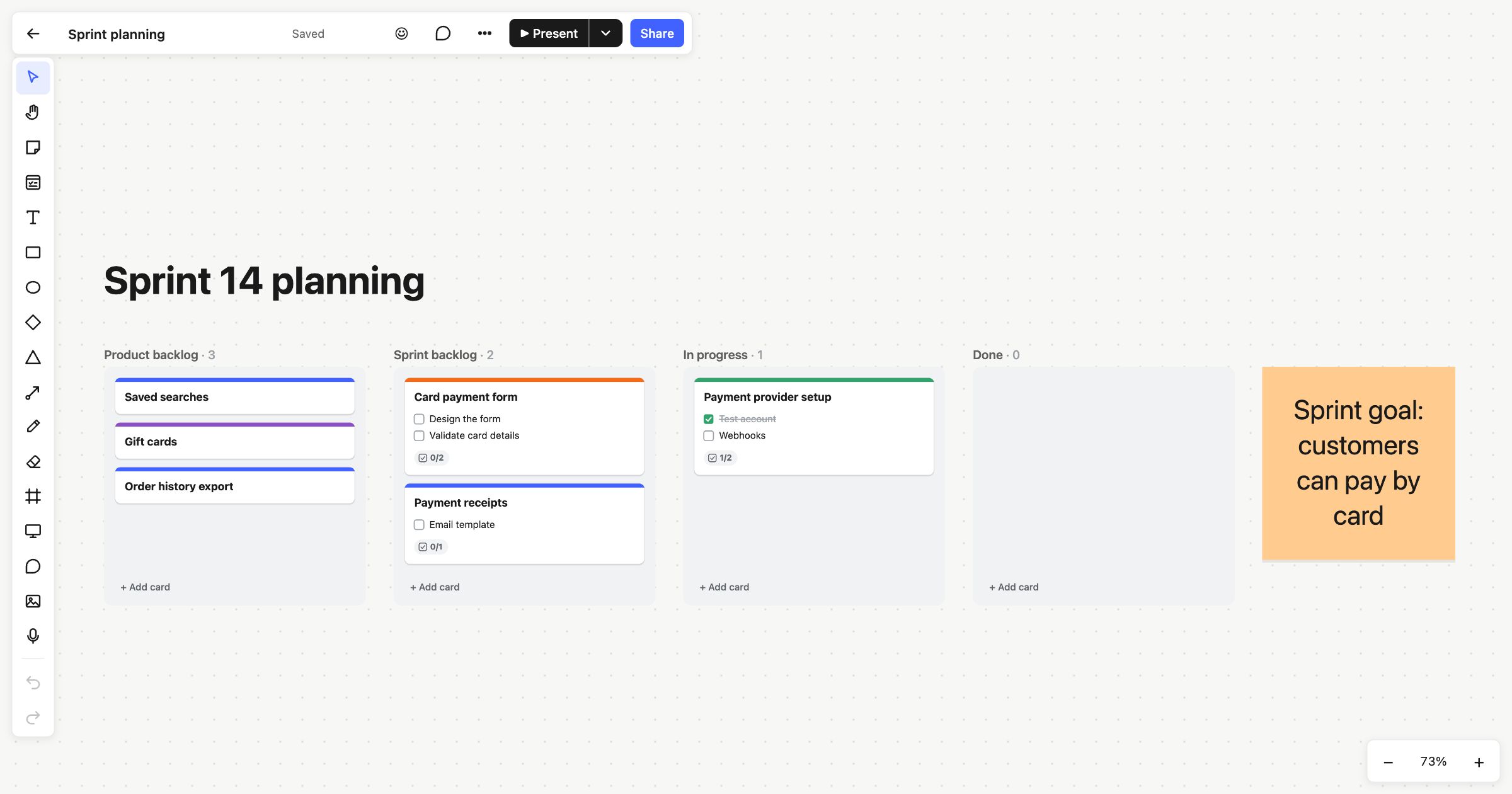 Sprint planning
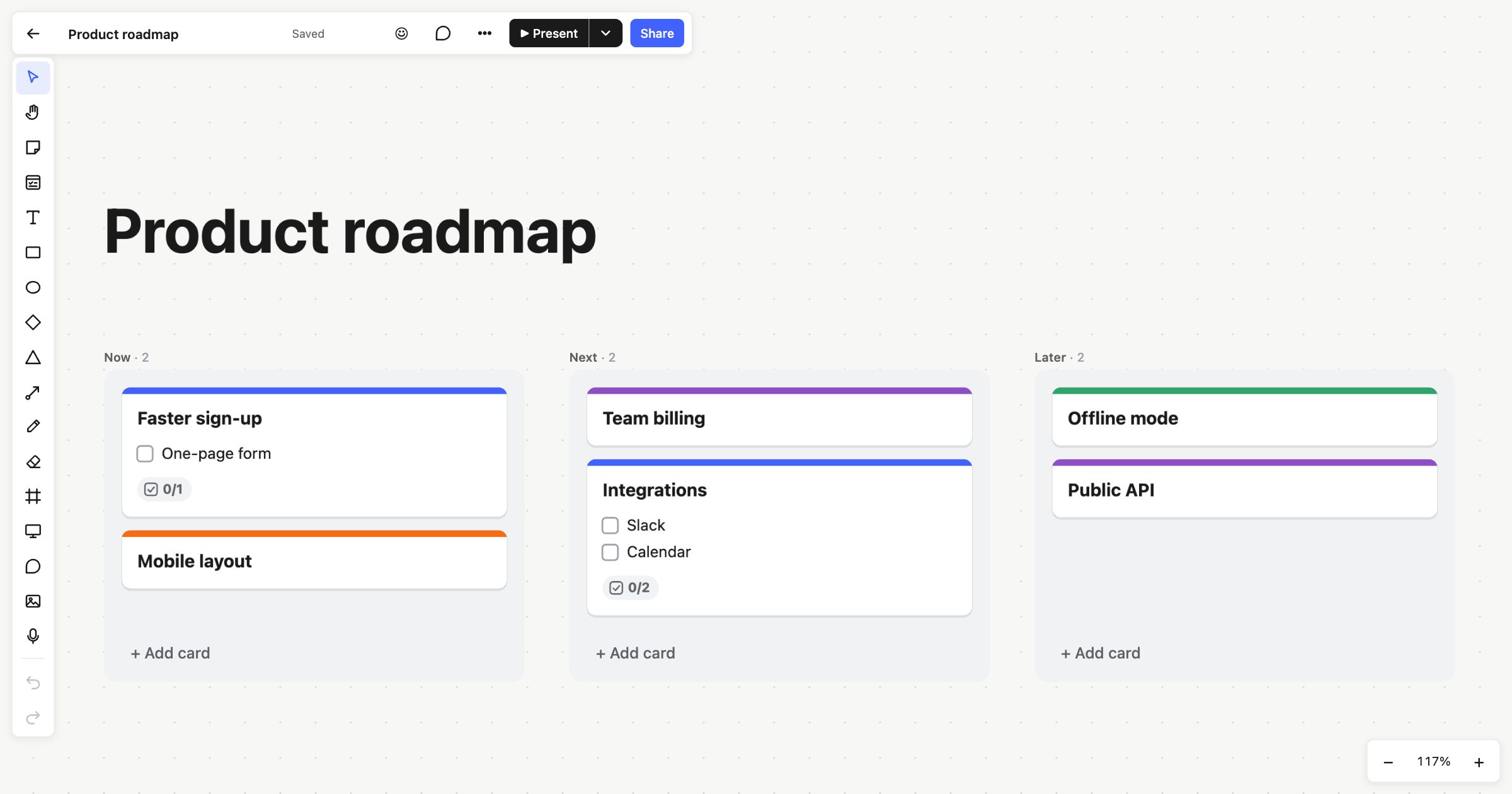 Product roadmap
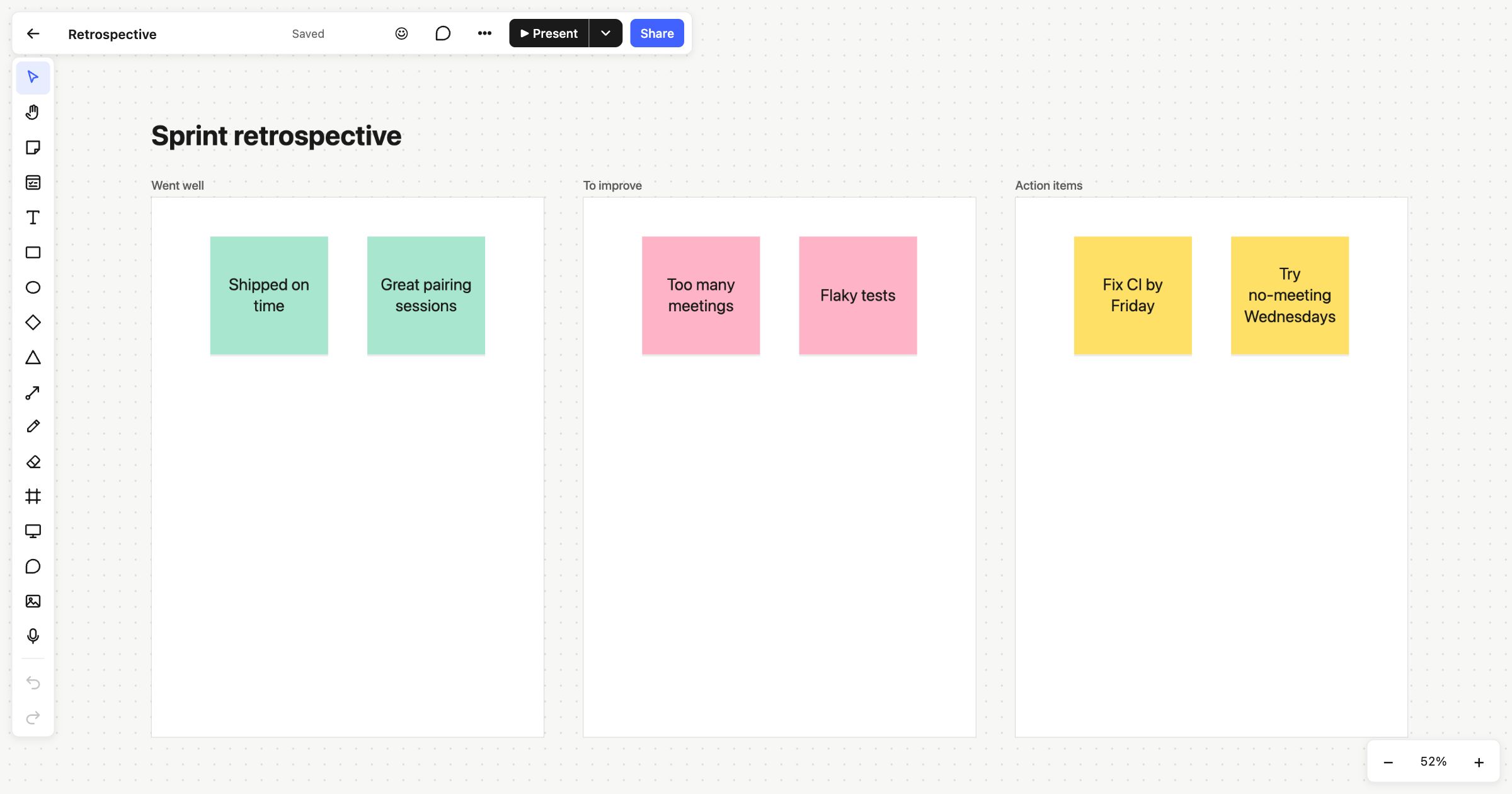 Sprint retrospective