
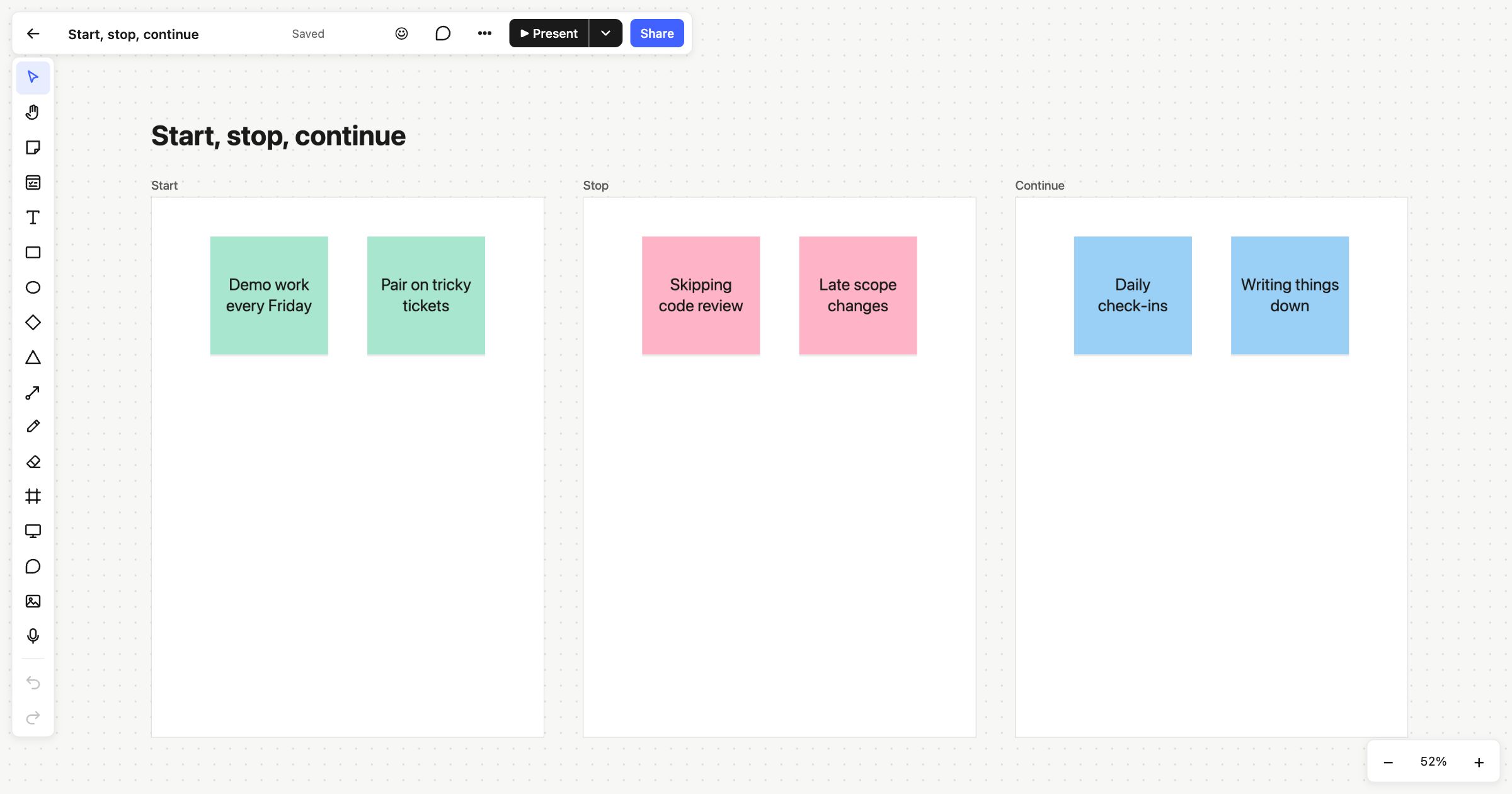
Start, stop, continue is a simple retrospective format. The team looks at how it works and sorts its thoughts into three columns: what to start doing, what to stop doing, and what to keep doing. This start stop continue template sets the three columns up for you, with a couple of example notes in each.
When to use start, stop, continue
Use it when you want a retrospective that ends in clear actions. Every note is already a suggestion about behaviour, so there’s less work turning discussion into changes. It suits teams that are new to retrospectives, a quick check-in halfway through a project, or a change of pace when your usual format has gone stale. It works outside software too, for any team that wants to look at how it works.
How to run it
- Explain the columns (2 minutes). Start is for new things to try. Stop is for things that aren’t helping. Continue is for what’s working and worth protecting.
- Write in silence (5–8 minutes). Everyone adds sticky notes to all three columns. One point per note.
- Read through (10 minutes). Go column by column. Drag duplicates together and talk about anything unclear.
- Vote (5 minutes). Give each person two or three votes across Start and Stop.
- Commit (5–10 minutes). Take the top two or three and agree who will do what before the next retro.
What’s on the template
The board is titled “Start, stop, continue” and has three columns, each a frame:
- Start, in green: “Demo work every Friday” and “Pair on tricky tickets”.
- Stop, in pink: “Skipping code review” and “Late scope changes”.
- Continue, in blue: “Daily check-ins” and “Writing things down”.
The colours help at a glance: green to begin, pink to drop, blue to keep. Replace the examples with your own or clear them out.
Tips
- Use the timer. A shared countdown everyone can see keeps the silent writing short and fair.
- Vote without bias. Votes stay hidden until the vote ends, then the counts appear on the board.
- Turn actions into cards. Add a card next to the board for each commitment, with a person and a due date, so it shows up in their My tasks list.
On the Free plan one person edits, and teammates in the workspace can view, vote and comment. On the Team plan everyone edits, and guests are free.
For another format, try the sprint retrospective template, mad, sad, glad or the 4Ls retrospective.
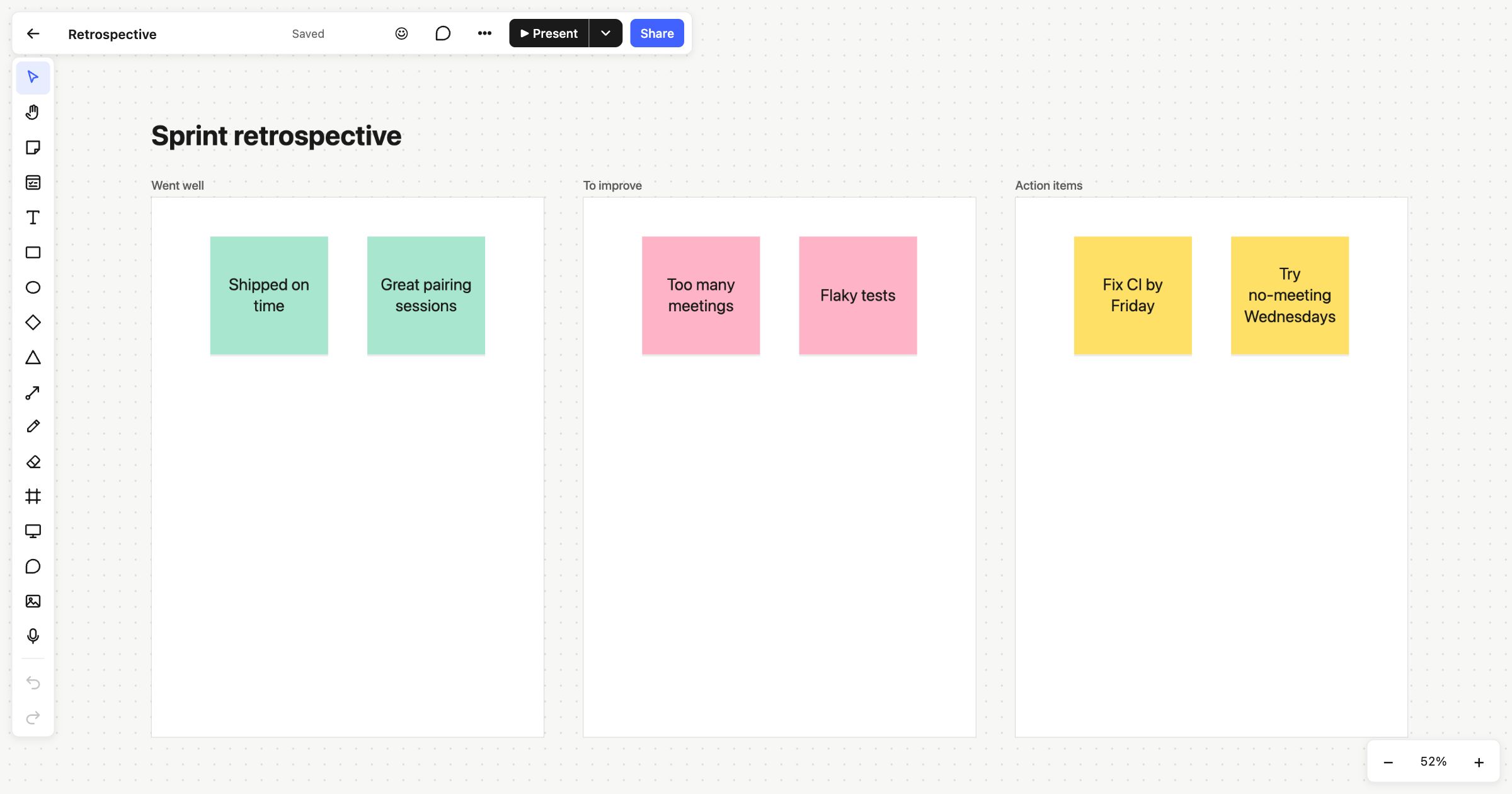 Sprint retrospective
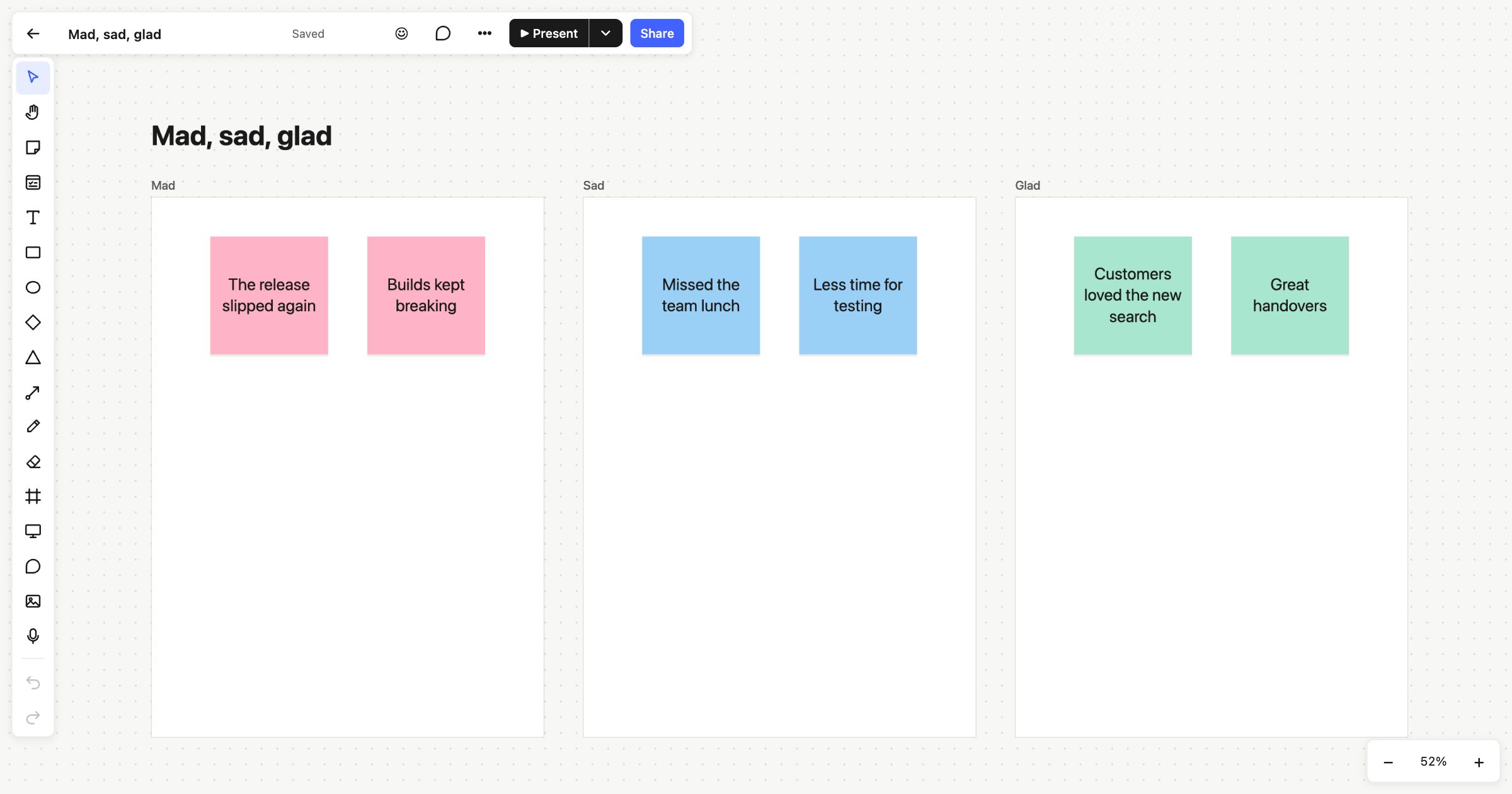 Mad, sad, glad
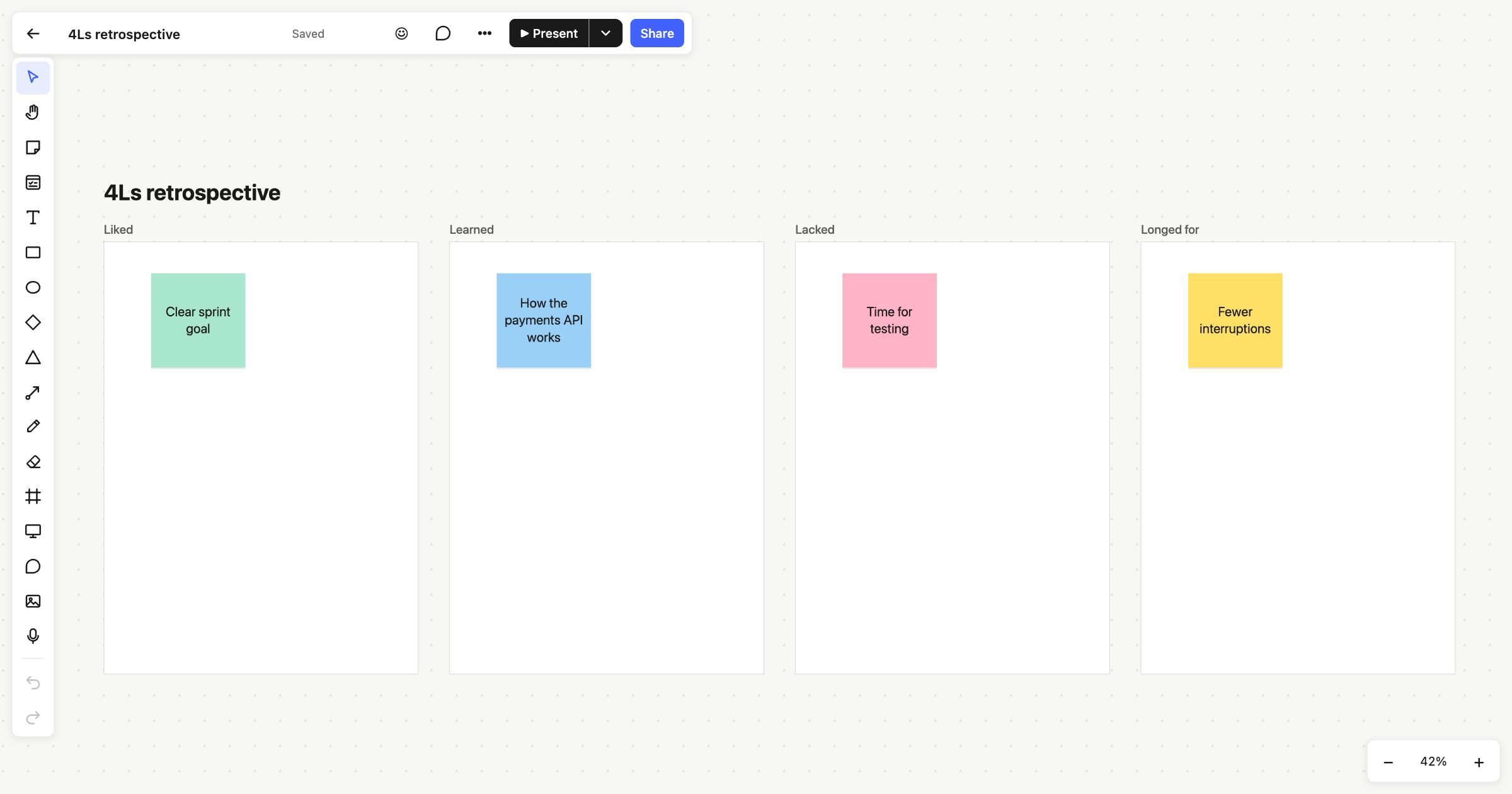 4Ls retrospective